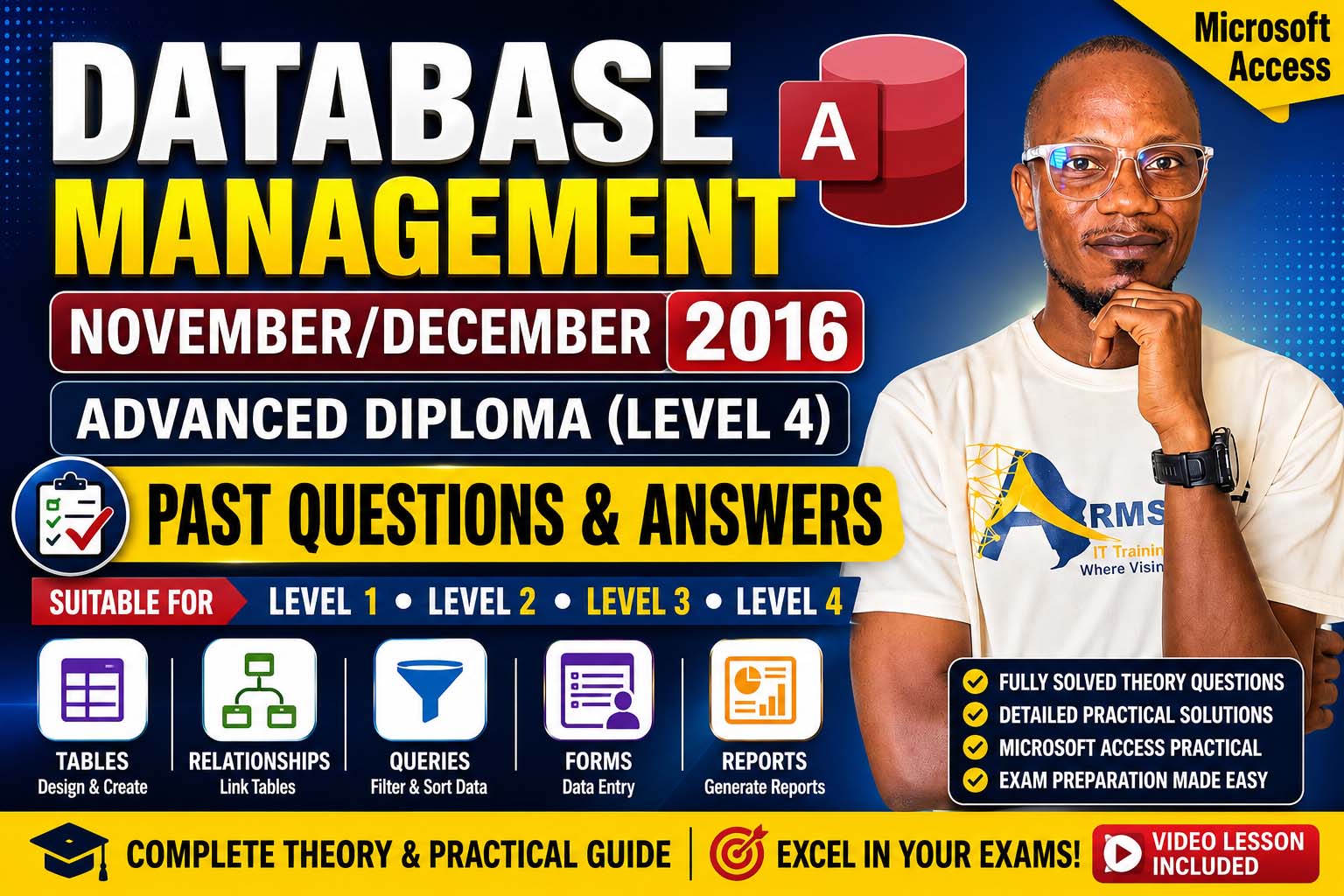
Database Management (Advanced Diploma Level 4) – Past Questions & Answers
Complete solutions to both theory and practical Microsoft Access examination questions (Nov/Dec 2016). Click each question below to reveal the answer.
Preparing for the November/December 2016 Database Management Examination? This comprehensive guide provides fully solved questions and answers for Advanced Diploma Level 4 students. Although the examination was designed primarily for Level 4 (Advanced Diploma) candidates, it is also an excellent revision resource for Level 1, Level 2, and Level 3 students who want to strengthen their understanding of Microsoft Access and relational database concepts.
In this lesson, you'll learn the theoretical concepts of relational databases, foreign keys, action queries, input masks, validation rules, importing and exporting databases, formatting tables, and creating mailing labels. You'll also practice designing tables, creating forms, establishing relationships, generating reports, and using SQL queries in Microsoft Access.
Whether you're preparing for your final examinations or improving your practical database skills, this tutorial will help you master Microsoft Access step by step.
What You'll Learn
- Relational Database Concepts
- Primary Key and Foreign Key
- Microsoft Access Action Queries
- Combo Box and Lookup Wizard
- Input Masks and Validation Rules
- Importing and Exporting Data
- Formatting Tables
- Creating Mailing Labels
- Designing Database Tables
- Creating Forms
- Creating Relationships
- Building Reports
- SQL Query Basics
SECTION A – Theory Questions & Answers
Question 1: Briefly explain the term Foreign Key in the concept of a relational database.
A Foreign Key is a field in one table that refers to the Primary Key of another table. It is used to establish a relationship between two tables and maintain referential integrity.
Question 2: Briefly explain the term Relational Database.
A Relational Database is a database that stores data in related tables (rows and columns). The tables are connected using Primary Keys and Foreign Keys, making it easy to organize and retrieve related information.
Question 3: Outline the process of using an Action Query in an MS Access database table.
- Open the database.
- Click Create → Query Design.
- Add the required table(s).
- Select the fields to be affected.
- On the Query Design tab, choose the required Action Query (Update, Append, Delete, or Make Table).
- Specify the criteria if needed.
- Click Run (!).
- Confirm the action when prompted.
Question 4: List four (4) Action Queries and explain one of them.
Four Action Queries:
- Update Query
- Append Query
- Delete Query
- Make Table Query
Explanation (Update Query):
An Update Query changes the values of existing records in one or more fields that meet specified criteria.
Question 5: Explain the process of creating a Combo Box in MS Access table.
- Open the table in Design View.
- Select the field.
- Under Data Type, choose Lookup Wizard.
- Choose whether the values come from another table/query or type them manually.
- Enter or select the values.
- Click Next until the wizard finishes.
- Click Finish and save the table.
Question 6: Briefly explain the term Input Mask and list the two (2) data types that can use Input Mask.
Input Mask:
An Input Mask is a property that controls how data is entered into a field by enforcing a specific format.
Data Types that use Input Mask:
- Short Text (Text)
- Date/Time
Question 7: Using the validation rule property of a number field, state the validation rule for entering numbers in the range of 0–100 only.
Validation Rule:
Between 0 And 100or
>=0 And <=100Question 8: Briefly outline the process of importing and exporting database files.
Importing
- Open the database.
- Click External Data.
- Select the source (Excel, Access, Text File, etc.).
- Browse and choose the file.
- Follow the Import Wizard.
- Finish and save.
Exporting
- Open the database.
- Select the table/query/report.
- Click External Data.
- Choose the export format.
- Select the destination.
- Click OK/Finish.
Question 9: Outline the process of formatting tables in Datasheet View.
- Open the table in Datasheet View.
- Click the Home tab.
- Change font, font size, and text color.
- Apply gridlines or alternate row colors.
- Adjust column widths and row heights.
- Save the table.
Question 10: Outline the process of creating mailing labels.
- Select the table or query containing the records.
- Click Create → Labels.
- Choose the label size and manufacturer.
- Select the font and formatting.
- Insert the required fields (Name, Address, etc.).
- Sort records if necessary.
- Finish the wizard.
- Preview and print the labels.
SECTION B – Practical (50 Marks)
Unlike Section A, this section focuses on hands-on Microsoft Access practical work. Students are expected to create database tables, forms, relationships, queries, reports, and print their completed work.
1. Design the Students Table
| Field Name | Data Type |
|---|---|
| INDEX | Short Text (Primary Key) |
| GENDER | Short Text |
| AGE | Number |
| HALL | Short Text |
| LEVEL | Number |
Enter the following records
| INDEX | GENDER | AGE | HALL | LEVEL |
|---|---|---|---|---|
| Y09RTAG01 | MALE | 30 | CW | 300 |
| Y09RTAG02 | MALE | 43 | CW | 300 |
| Y09RTAG03 | FEMALE | 23 | LG | 400 |
| Y09RTAG04 | MALE | 25 | CW | 400 |
2. Design the Marks Table
| Field Name | Data Type |
|---|---|
| INDEX | Short Text (Primary Key/Foreign Key) |
| SUBJECTS | Short Text |
| MARKS | Number |
| MARKS120 | Number |
Enter the following records
| INDEX | SUBJECT | MARKS | MARKS120 |
|---|---|---|---|
| Y09RTAG01 | E | 55 | |
| Y09RTAG02 | E | 66 | |
| Y09RTAG03 | E | 43 | |
| Y09RTAG04 | E | 43 | |
| Y09RTAG01 | M | 78 | |
| Y09RTAG02 | M | 90 | |
| Y09RTAG03 | M | 78 | |
| Y09RTAG04 | M | 65 | |
| Y09RTAG01 | S | 34 | |
| Y09RTAG02 | S | 23 | |
| Y09RTAG03 | S | 45 | |
| Y09RTAG04 | S | 66 | |
| Y09RTAG01 | INT | 78 | |
| Y09RTAG02 | INT | 56 | |
| Y09RTAG03 | INT | 58 | |
| Y09RTAG04 | INT | 56 | |
| Y09RTAG01 | AC | 45 | |
| Y09RTAG02 | AC | 36 | |
| Y09RTAG03 | AC | 78 | |
| Y09RTAG04 | AC | 23 |
3. Create Forms
Using the Form Wizard:
- Create Students Form.
- Create Marks Form.
- Use the forms to enter the records.
4. Create a Relationship
- Click Database Tools → Relationships.
- Add Students and Marks tables.
- Drag INDEX from Students to INDEX in Marks.
- Tick Enforce Referential Integrity.
- Click Create.
5. Create the Report
Create a query with the following criteria:
- LEVEL = 400
- MARKS > 55
- Sort MARKS in Descending order.
SQL View
SELECT Students.INDEX, Students.GENDER, Students.AGE, Students.HALL, Students.LEVEL, Marks.SUBJECTS, Marks.MARKS

                FROM Students INNER JOIN Marks ON Students.INDEX = Marks.INDEX

                WHERE Students.LEVEL = 400 AND Marks.MARKS > 55

                ORDER BY Marks.MARKS DESC;
Expected Report
| INDEX | GENDER | LEVEL | SUBJECT | MARKS |
|---|---|---|---|---|
| Y09RTAG03 | FEMALE | 400 | M | 78 |
| Y09RTAG04 | MALE | 400 | S | 66 |
| Y09RTAG04 | MALE | 400 | M | 65 |
| Y09RTAG03 | FEMALE | 400 | INT | 58 |
6. Print Your Work
Print the following:
- Students Table
- Marks Table
- Students Form
- Marks Form
- Relationship Window
- Report for Level 400 students with Marks greater than 55, sorted in descending order.
These answers are suitable for Microsoft Access (Level I, II & III) examination preparation.
Watch the Practical Video Lesson
Watch the complete Microsoft Access practical lesson below to learn how to:
- Create Tables
- Set Primary Keys
- Enter Records
- Create Forms
- Create Relationships
- Generate Reports
- Sort Records
- Print Database Objects
Download Past Question
Want the original examination paper? Click the button below.
Before Your Download Begins...
To support the creation of more free solved past questions and practical lessons, kindly subscribe first.
Get access to:
- Solved Past Questions
- Practical Video Tutorials
- Microsoft Access Lessons
- Database Management Notes
Subscribe to our YouTube Channel
Click the button below to subscribe – your download will start automatically after subscription.
Final Thoughts
The November/December 2016 Database Management Examination remains one of the best practical assessments for students learning Microsoft Access. Although it was prepared for Advanced Diploma Level 4, the theory and practical exercises are highly valuable for Levels 1, 2, and 3 students who want to build a strong foundation in database design and management.
By working through the theory questions, completing the practical exercises, and following the accompanying video tutorial, you'll gain the confidence needed to tackle similar examination questions and real-world Microsoft Access projects.
Join Our Tech Family
Get new lessons, tech tips, and updates directly on your phone. Be part of our growing IT community, never miss a tutorial or Windows tip!
World Class IT Solutions Across the Globe.
Empowering Businesses, Students & Organizations with World Class IT Solutions Across the Globe.
 USA
USA UK
UK Canada
 Australia
 Germany
 France
 India
India Nigeria
 Ghana
Ghana Kenya
Kenya South Africa
 Brazil
 Mexico
 Japan
Japan China
China Russia USA UK Canada Australia Germany France India Nigeria Ghana Kenya South Africa Brazil Mexico Japan China Russia
Our Other Plans
Explore our professional services tailored to meet your business needs. Click "Get a Quote" to start a conversation on WhatsApp.
Front-End Development
Responsive UIs, interactive components, modern frameworks & performance.
Get a QuoteOur Services Membership Plans
Get instant access to the full script library — activate online in minutes, no waiting. Choose the plan that fits your needs and unlock premium resources, source code, and commercial licenses.
VIP MEMBERSHIP
One Plan. Every Script. Full Source Code.
Instead of buying scripts one by one, get access to everything — every template and source code we have built, plus everything we ship in the future. One plan, no restrictions.
- Full Script Library
- Complete Source Code
- Future Scripts Included
- 6 Months Direct Support
PHP + Apps Script
- Full Access — PHP & Apps Script projects
- Step-by-step video guides
- Commercial-use license
- AI Prompts included — Free
- Ready-to-use projects
- Bug fixes & free future updates
- Future video releases auto added
- Installation help included
- No recurring charges
- 1 downloads/day
- Full source code access
- Files you download stay yours for lifetime
- Resale rights included
- Modification rights included
- 24/7 WhatsApp support
PHP + Apps Script
- Full Access — PHP & Apps Script projects
- Step-by-step video guides
- Commercial-use license
- AI Prompts included — Free
- Ready-to-use projects
- Bug fixes & free future updates
- Future video releases auto added
- Installation help included
- No recurring charges
- 2 downloads/day
- Full source code access
- Files you download stay yours for lifetime
- Resale rights included
- Modification rights included
- 24/7 WhatsApp support
PHP + Apps Script
- Full Access — PHP & Apps Script projects
- Step-by-step video guides
- Commercial-use license
- AI Prompts included — Free
- Ready-to-use projects
- Bug fixes & free future updates
- Future video releases auto added
- Installation help included
- No recurring charges
- 3 downloads/day
- Full source code access
- Files you download stay yours for lifetime
- Resale rights included
- Modification rights included
- 24/7 WhatsApp support
Languages & Technologies We Work With
Core competencies and the business problems each one solves. From automation to full-stack solutions, these tools power our services.